
Before you start
- You need a SEOmator account in at least one organization.
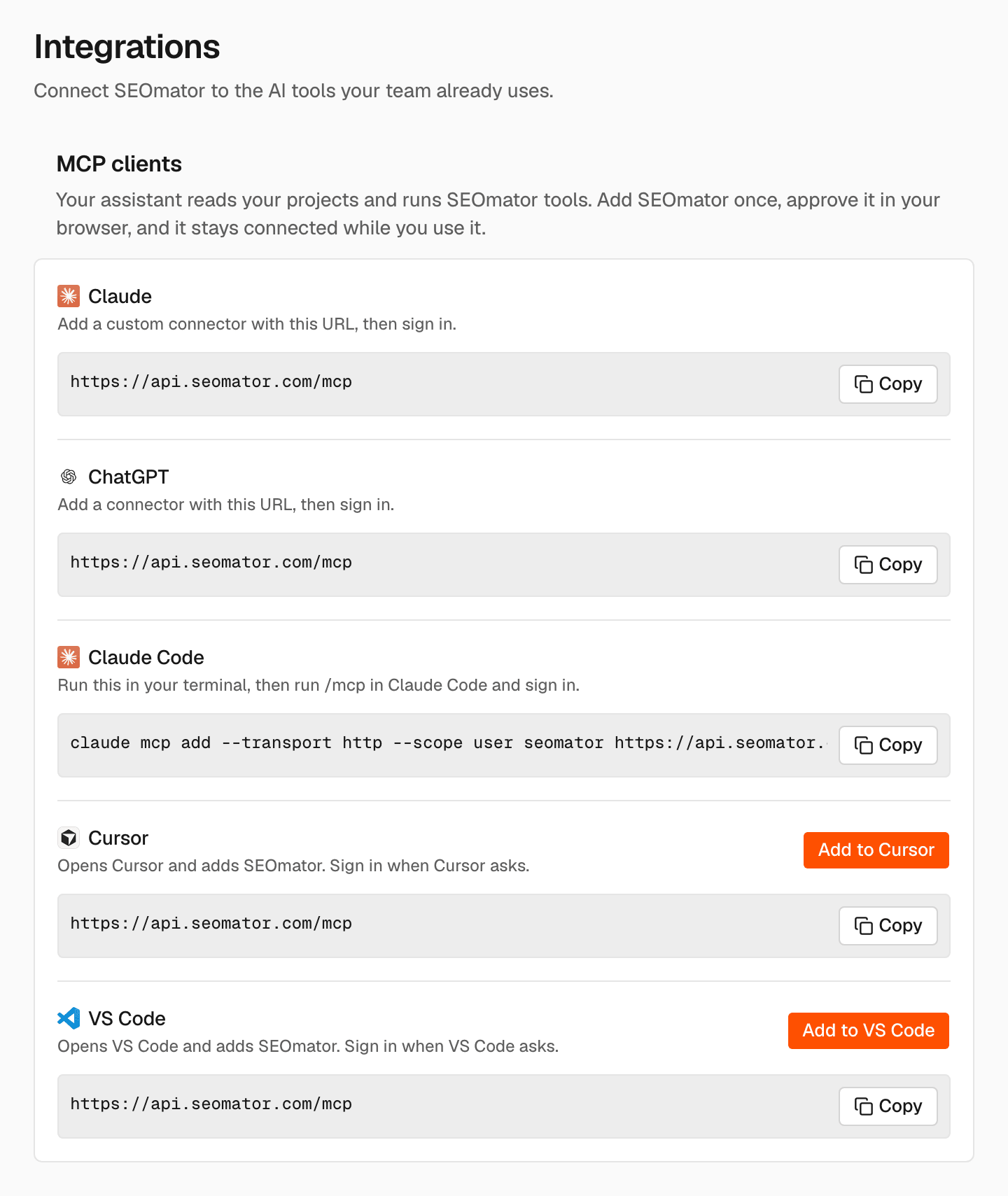
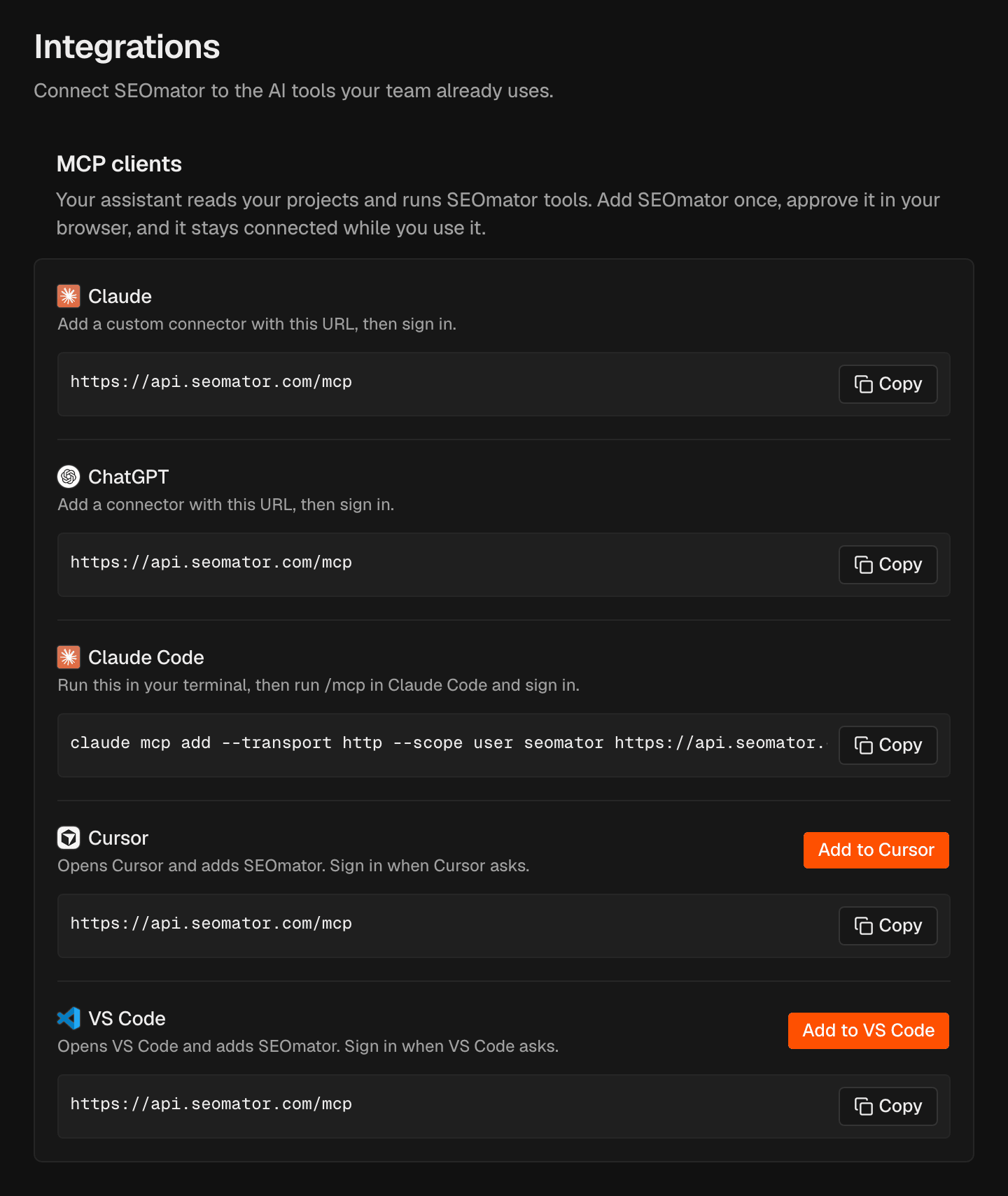
- Find your tool’s setup line: in the sidebar, click MCP. The MCP clients section on the Integrations page lists each supported tool with its URL or command and a Copy button.
Add SEOmator to your tool
- Claude
- ChatGPT
- Claude Code
- Cursor
- VS Code
1
Copy the URL
On the Integrations page, click Copy in the Claude row.
2
Add a connector
In Claude, add a custom connector with this URL.
3
Sign in
Sign in to SEOmator when Claude asks, then approve the
connection.
Approve the connection
When you sign in from your tool, SEOmator opens an Authorize page in your browser.1
Check the account
Check the email you’re signed in with. To use a different account, click
Use another account.
2
Choose the organization
Under Organization, choose the organization the tool may use. A
connection works with one organization only.
3
Allow it
Read what the tool can do, then click Allow. To refuse, click Deny.
Connect with an API key
Scripts and tools that can’t sign in through the browser can use an organization API key instead.1
Create a key
Create a key on the API keys page.
2
Point the client at the key endpoint
Set the client’s server URL to
https://api.seomator.com/mcp/key.3
Send the key
Send the key in the
x-api-key header, or as Authorization: Bearer <key>.If it doesn’t work
- The page says “This consent link is not valid”: start the connection again from your tool.
- The page says to create an organization first: create one in SEOmator, then connect again.
- The tool lost access: it may have been disconnected or unused for too long. See Integrations, then connect it again.
Related
Integrations
See and disconnect the apps you approved.
API keys
Create keys for scripts and MCP clients.
Agent
Ask the same questions inside SEOmator.