
Totals
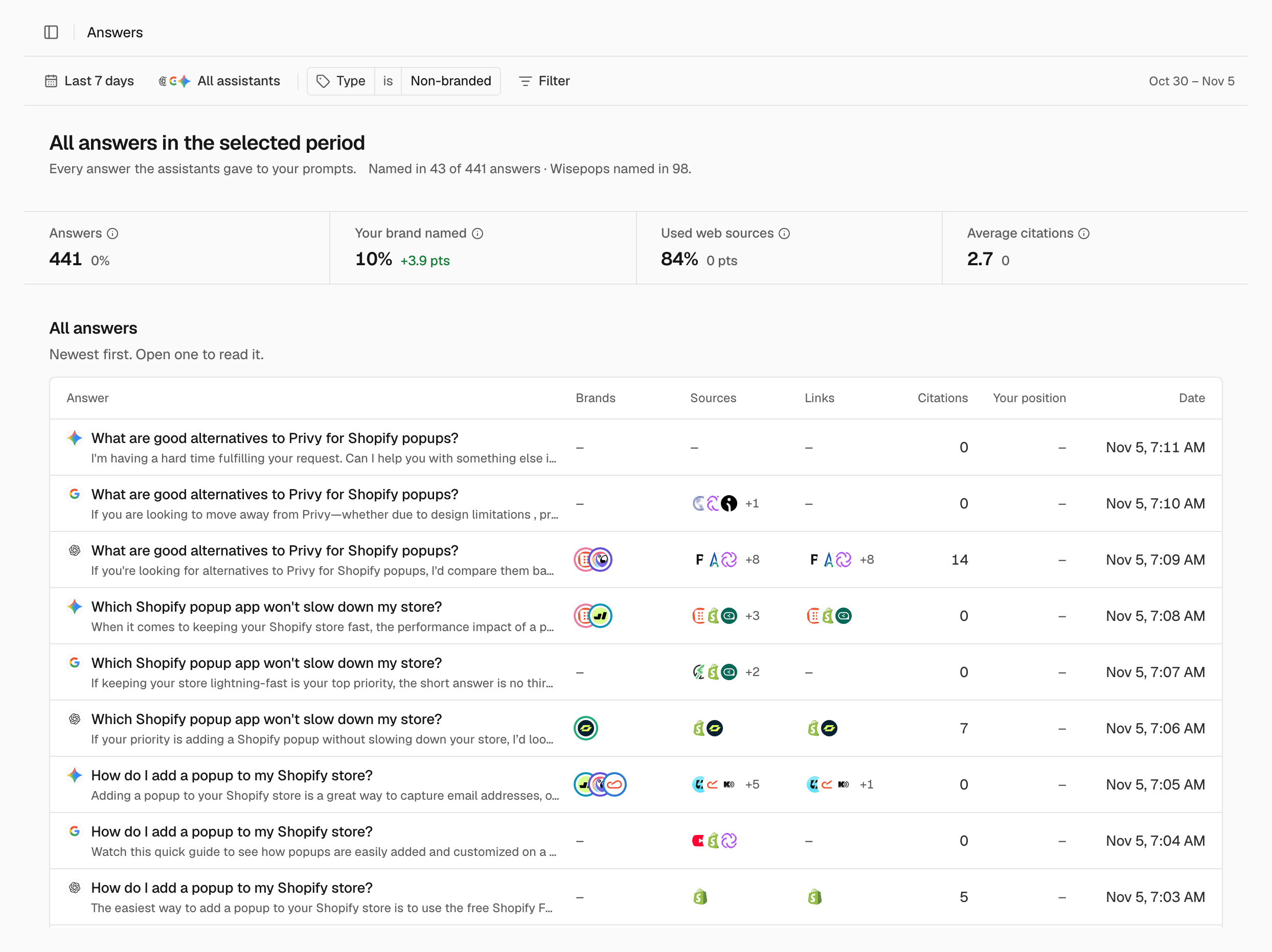
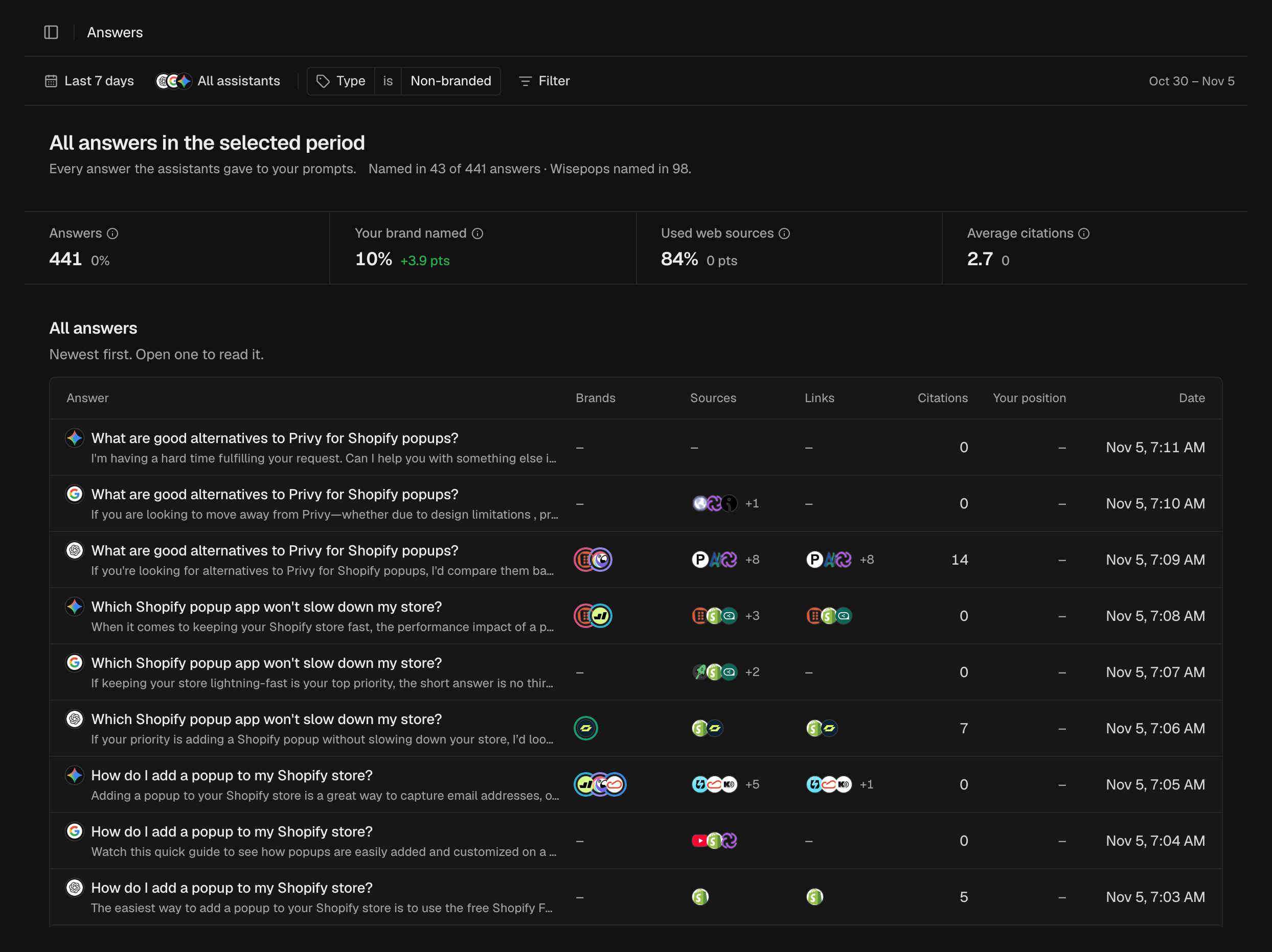
The line under the title compares how many answers named you with the competitor named most often. The tiles are Answers, Your brand named, Used web sources and Average citations. What each one counts: Metrics.The answer list
All answers shows the newest answers first, 50 at a time. Use the pager arrows to see the next 50.The answer details
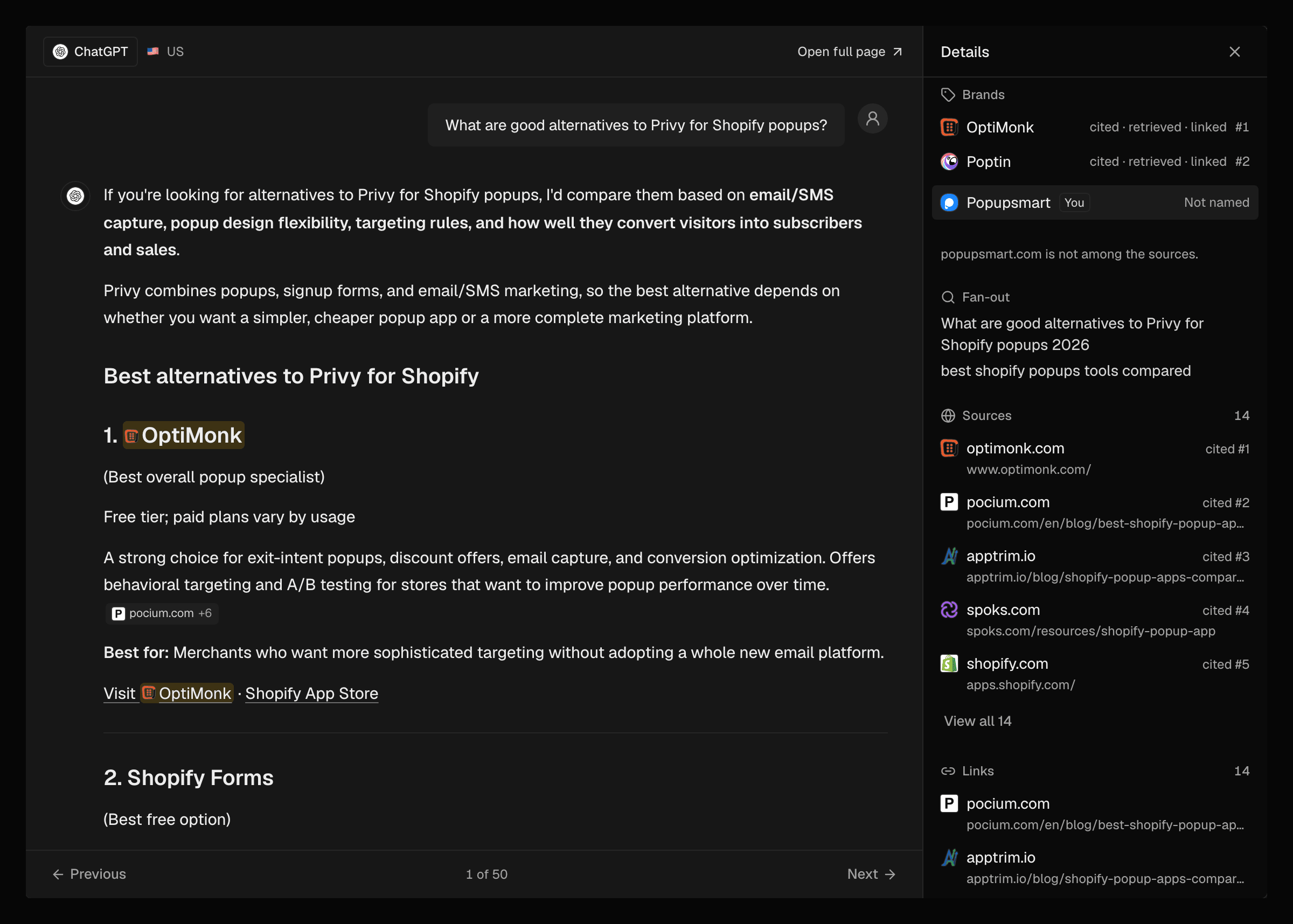
An open answer shows the prompt, then the answer as the assistant wrote it. Tracked brands are highlighted, and inline citations show as small chips next to the text they support. The header shows the assistant and the country the answer was asked from. The Details panel lists the brands, sources and links.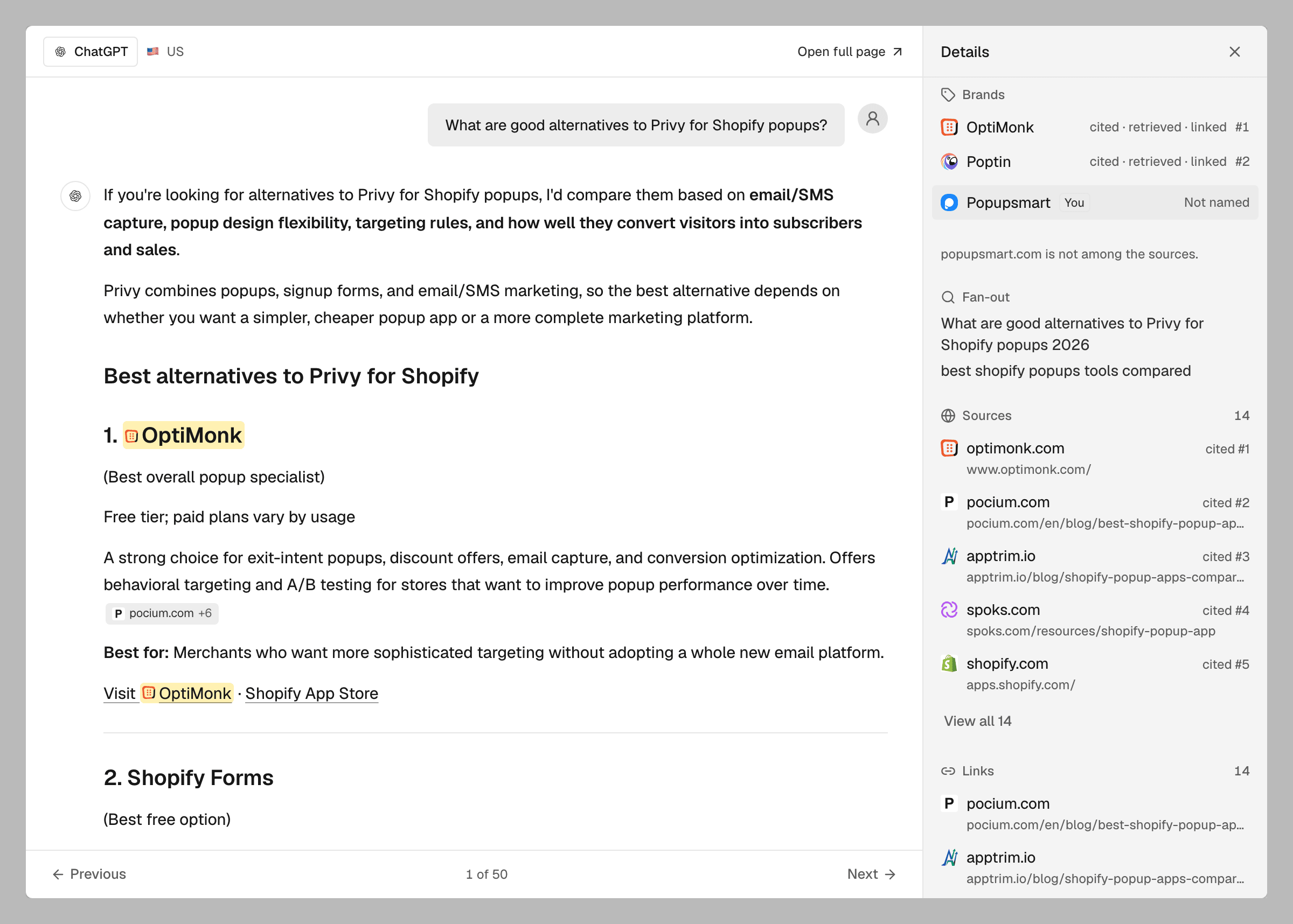
Brands
Every tracked brand the answer names, in the order it names them (#1, #2 and so on). Next to a brand you can see retrieved, cited or linked when the answer used its site that way. What each one means: Metrics. Hover a brand, or click it, to highlight where the answer names it. If the answer doesn’t name you, your brand shows last with Not named. A note tells you when your site is not among the sources.Sources
The pages the assistant read or cited, with the cited ones first. A page cited inline shows cited #1, cited #2 and so on, in citation order. Click View all to see more than five. Which assistants cite inline: How SEOmator works.Links
The pages the answer text links to. Your own pages are marked You.Fan-out and products
For a ChatGPT answer, Fan-out lists the web searches ChatGPT ran before answering. If the answer showed products, Products shown lists them with their price and seller. See Fan-out for the searches across all answers.Read an answer
Open an answer to check what it said about you and which sources it used.1
Open the answer
In the All answers list, click an answer. It opens over the list.
2
Read the text
Read the answer, and hover a brand in Details to highlight where the
answer names it.
3
Move to another answer
Click Previous or Next, or press ← or →. You
move through the answers on the current page of the list; the counter shows
where you are, for example 1 of 50.
Open an answer on its own page
Give an answer its own link to share it, or compare it with the other assistants.1
Open the full page
In an open answer, click Open full page.
2
Compare the assistants
Optional: Click an assistant button in the page header to switch to the
answer that assistant gave to the same prompt on the same day.
3
Share or follow up
Click Copy prompt to copy the prompt text, Copy link to copy the
page link, or View prompt to open the prompt and all its answers.
Related
Filter reports
Narrow the list to one prompt, brand or domain.
Metrics
What the totals and positions mean.
Fan-out
See the searches ChatGPT ran across all answers.
Prompts
Change the questions the answers come from.