
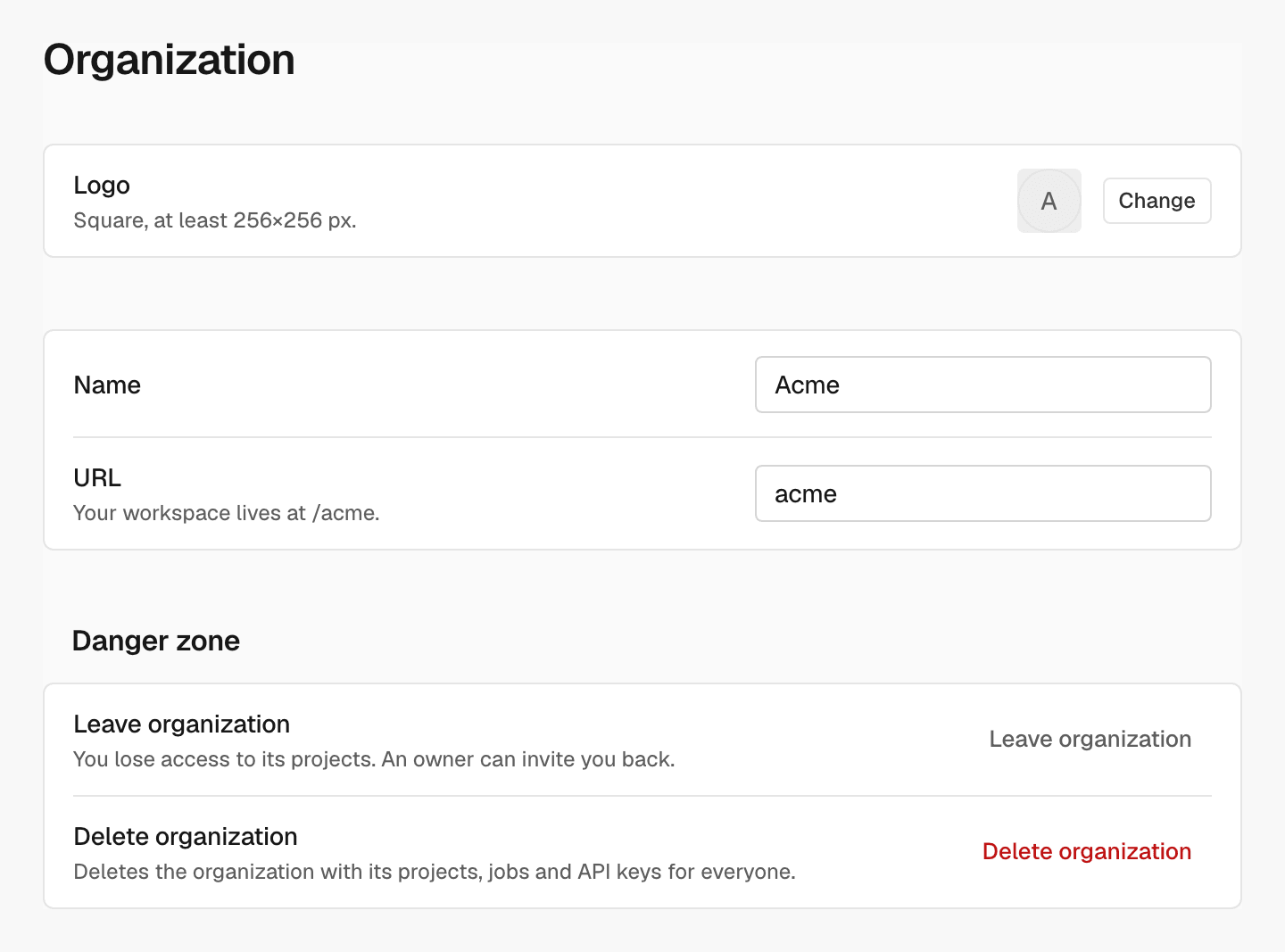
Logo, name and URL
Owners and admins What each role can do: Members.- Logo: a square image of at least 256×256 px.
- Name: the organization’s name, shown to every member.
- URL: your workspace lives at
/<URL>in the app address.
Danger zone
Danger zone holds Leave organization and, for owners, Delete organization.Change the logo
Next to Logo, click Change and choose an image. The new logo replaces the old one.Change the name or URL
1
Edit the field
Enter a new Name or URL.
2
Save
Click Save, which appears once you change a field.
Leave the organization
1
Start
In Danger zone, click Leave organization.
2
Confirm
Click Leave organization in the confirmation.
Delete the organization
Owners What each role can do: Members.1
Start
In Danger zone, click Delete organization.
2
Confirm
Click Delete organization in the confirmation.
Related
Members
Invite people and change roles.
Billing
Change the organization’s plan.