
Sign-in
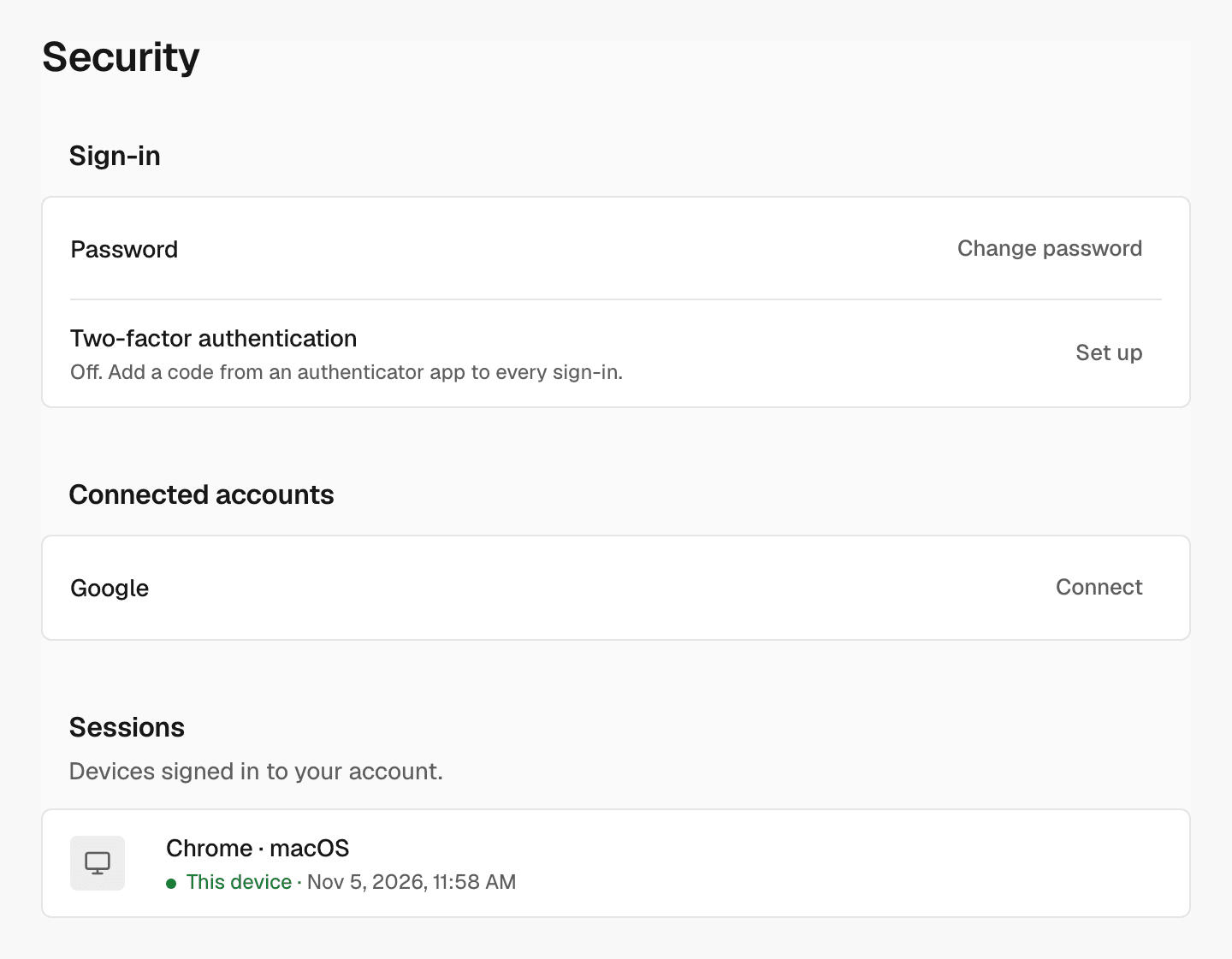
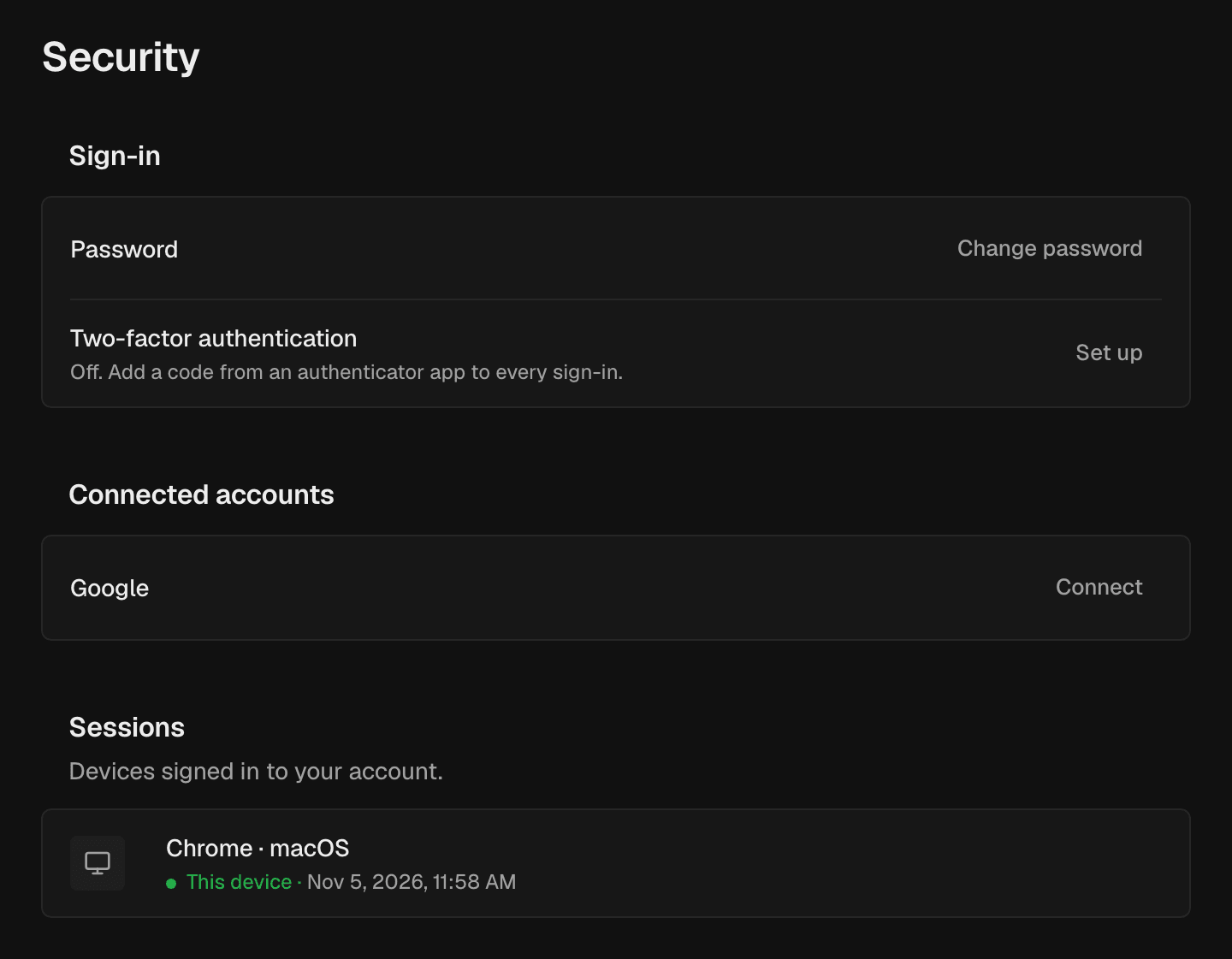
Sign-in holds your Password and Two-factor authentication. Two-factor authentication asks for a code from an authenticator app every time you sign in. It needs a password, so set one first if you sign in with Google.Connected accounts
Connected accounts shows whether you can also sign in with Google.Sessions
Sessions lists the devices signed in to your account. The device you are using now is marked This device.Change your password
1
Open the form
In Sign-in, next to Password, click Change password.
2
Enter both passwords
Enter your Current password and a New password of at least 8
characters.
3
Save
Click Change password.
Set a password
If you signed up with Google, you have no password yet. Next to Password, click Email me a link to set a password, then open the link SEOmator sends. After that, you can also sign in with your email.Turn on two-factor authentication
1
Start the setup
Next to Two-factor authentication, click Set up.
2
Enter your password
Enter your Current password and click Set up.
3
Scan the QR code
Scan the code with your authenticator app.
4
Save the backup codes
Keep them somewhere safe. Each one works once if you lose your phone.
5
Turn it on
Enter the code your app shows in Code and click Turn on.
Connect or disconnect Google
- To also sign in with Google, in Connected accounts, click Connect next to Google.
- To remove it, click Disconnect next to Google and confirm.
Sign out other devices
- To sign out one device, in Sessions, click Sign out next to it and confirm.
- To sign out every device except this one, click Sign out all other devices and confirm.
Related
Profile
Change your name, email and picture.
Sign up and sign in
Ways to create an account and sign in.