
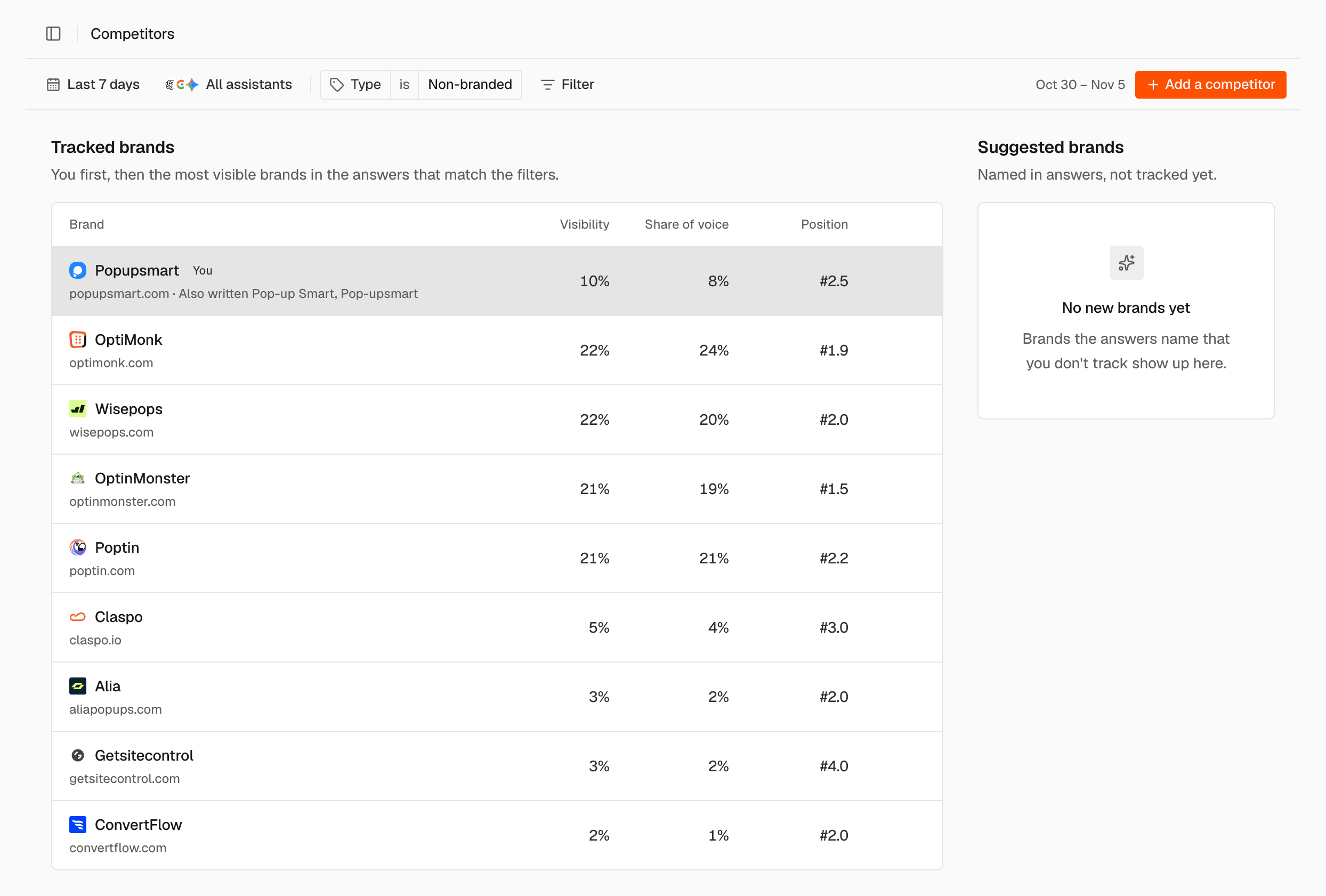
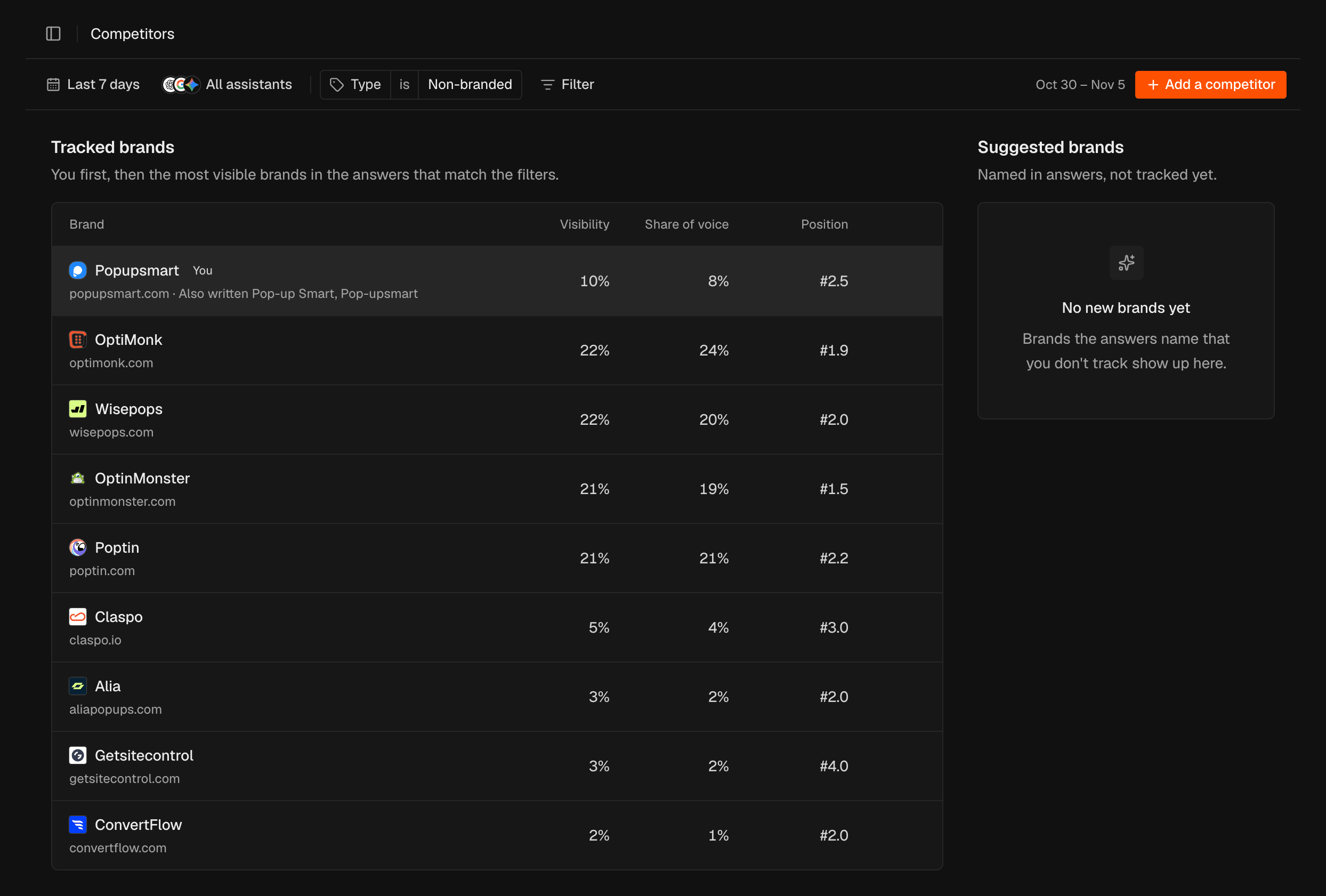
Tracked brands
Your brand comes first, marked You. The competitors follow, most visible first, in the answers that match the filters. The columns are Visibility, Share of voice and Position. What each one means: Metrics. Under each brand you see its domain and, after “Also written”, other ways the brand is written.Suggested brands
Suggested brands lists brands the answers name that you don’t track yet, with the number of answers that name each one and a quote.Aliases
An alias is another way a brand is written, such as “Pop-up Smart” for “Popupsmart”. SEOmator counts a brand when an answer uses its name or any alias. A brand’s domains decide which cited pages count as the brand’s.Add a competitor
Track a brand that the answers don’t suggest on their own.1
Open the dialog
Click Add a competitor at the end of the filter bar.
2
Enter the brand
In the Add a competitor dialog, enter the Brand name and its
Domain, without
https://, for example example.com.3
Add it
Click Add a competitor.
Track a suggested brand
In Suggested brands, click Track to add the brand to your competitors, or click × to dismiss it. A tracked brand moves to Tracked brands.Edit a brand and its aliases
Fix a brand’s name or domains, or add the other ways it is written. You can edit your own brand the same way.1
Open the brand
Hover the brand’s row and click the pencil icon.
2
Change the details
Change the Brand name, the Domains, or the Aliases. Click Add
alias to add one.
3
Optional: mark ordinary words
Select Ambiguous for an alias that is also an ordinary word. SEOmator
then checks each mention of it before counting it.
4
Save
Click Save.
Remove a competitor
Hover the competitor’s row, click the trash icon, then click Delete. Its counts disappear from every report. You can’t remove your own brand.Related
Prompts
Choose the questions the assistants are asked.
Insights
See how you compare with your competitors over time.
Metrics
How visibility, share of voice and position are counted.