
Member list
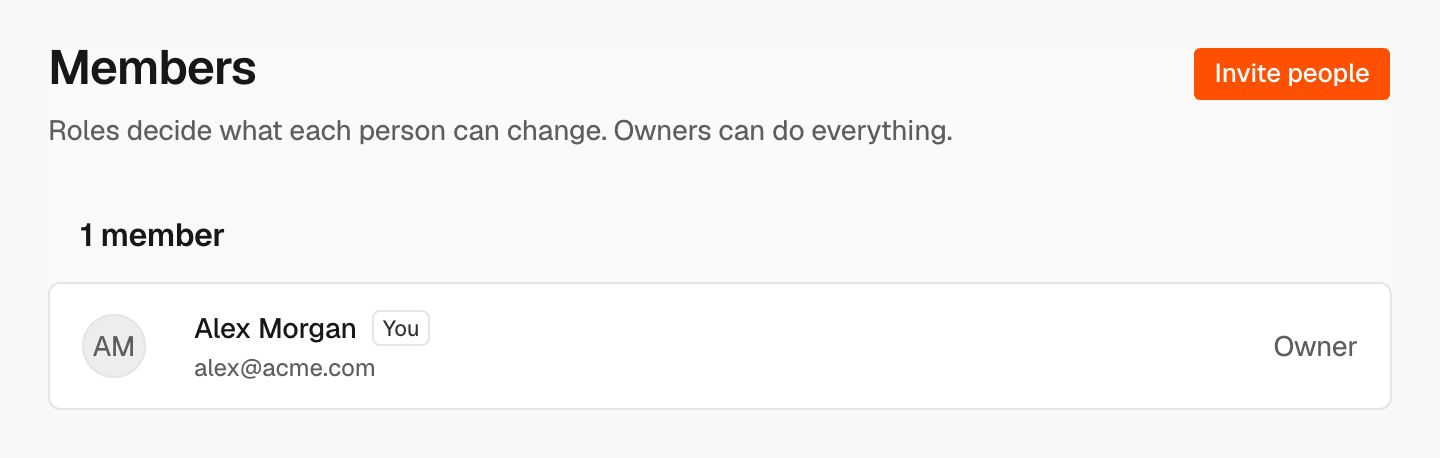
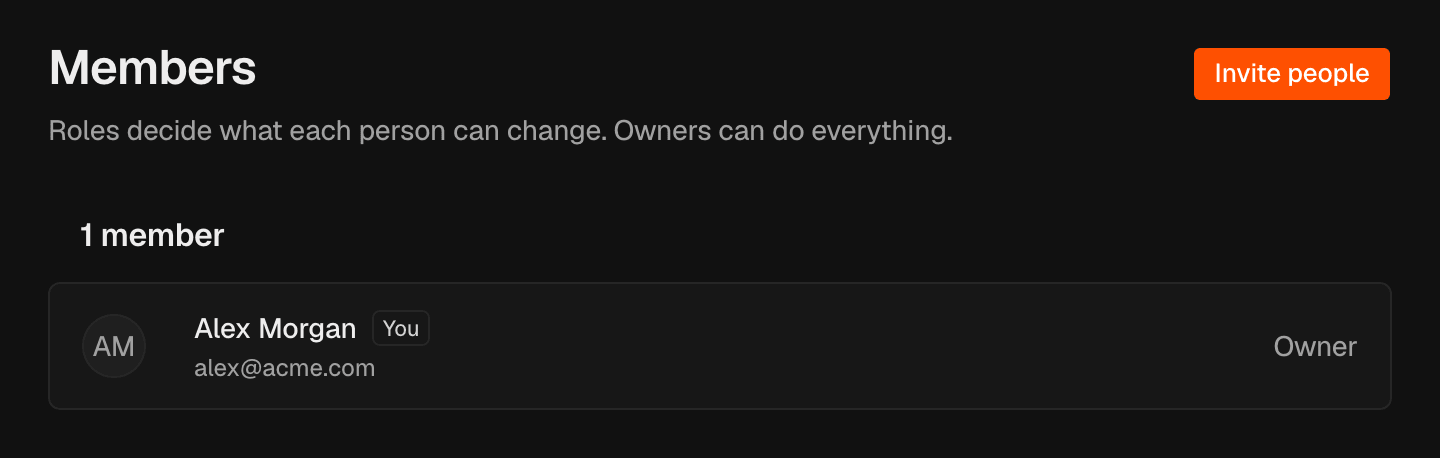
The list shows each member’s name, email and role. Your own row is marked You. Owners and admins see a role menu and Remove on every other row. Pending invitations lists the invitations nobody has accepted yet, with the role each one gives.Roles
What each role can do
Only owners can make someone an owner or change an owner’s role. An organization always keeps at least one owner.
Each answer from the agent spends the organization’s credits, also when a
viewer asks.
Invite someone
Owners and admins1
Open the invite form
Click Invite people.
2
Enter their details
Enter their Email and choose a Role. The default is Member.
3
Send it
Click Send invite.
Cancel an invitation
Owners and admins In Pending invitations, click Cancel next to the invitation, then click Cancel invitation in the confirmation. The link stops working, and you can invite them again later.Change a role
Owners and admins In the member’s row, choose a new role in the role menu. The change applies right away. You can’t change your own role here.Remove a member
Owners and admins1
Start
In the member’s row, click Remove.
2
Confirm
Click Remove in the confirmation.
Hand over ownership
Owners To hand the organization to someone else, make them an owner, then leave the organization or ask them to change your role.Related
Organization settings
Rename, leave or delete the organization.
API keys
Give scripts and tools access without a seat.