
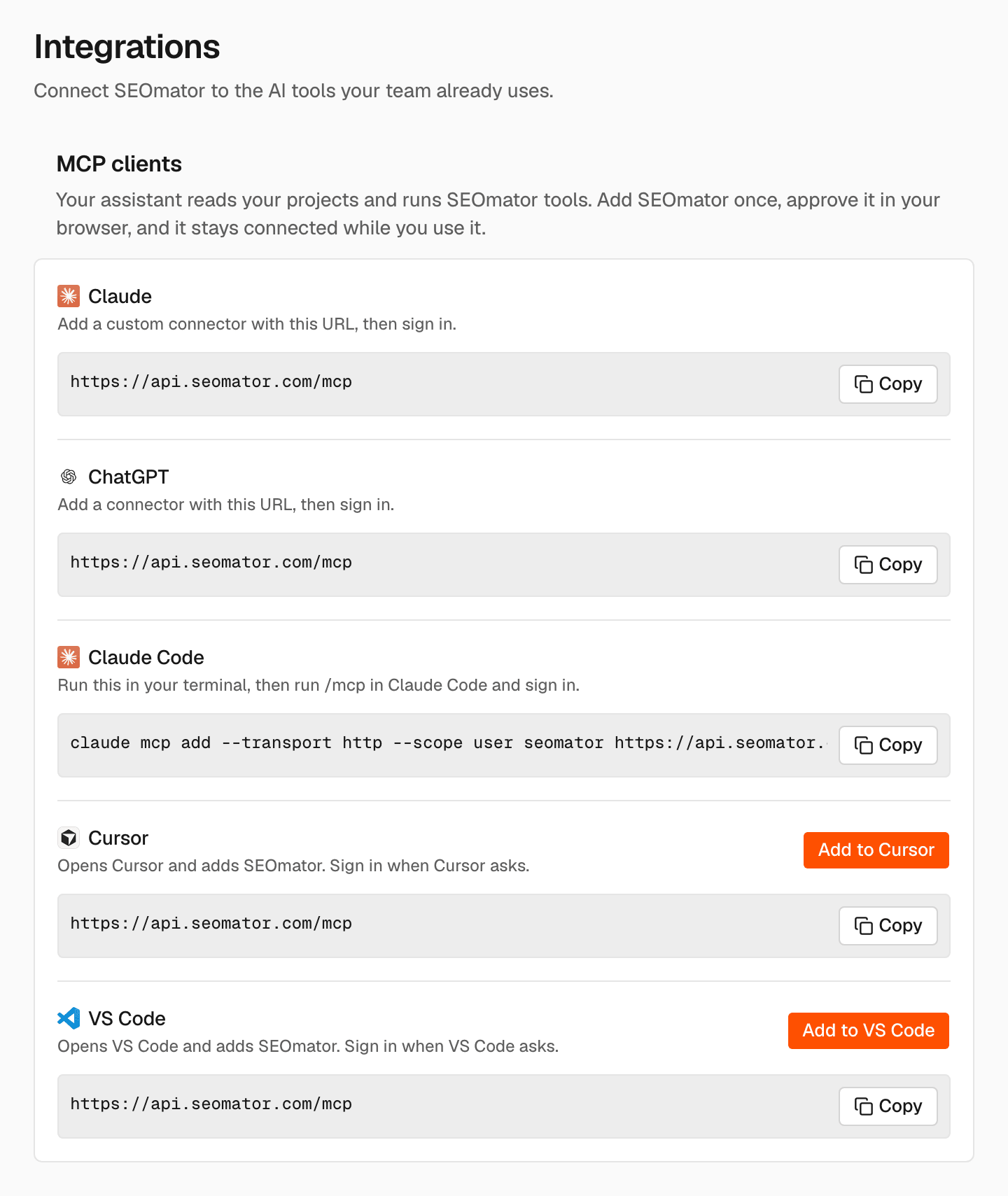
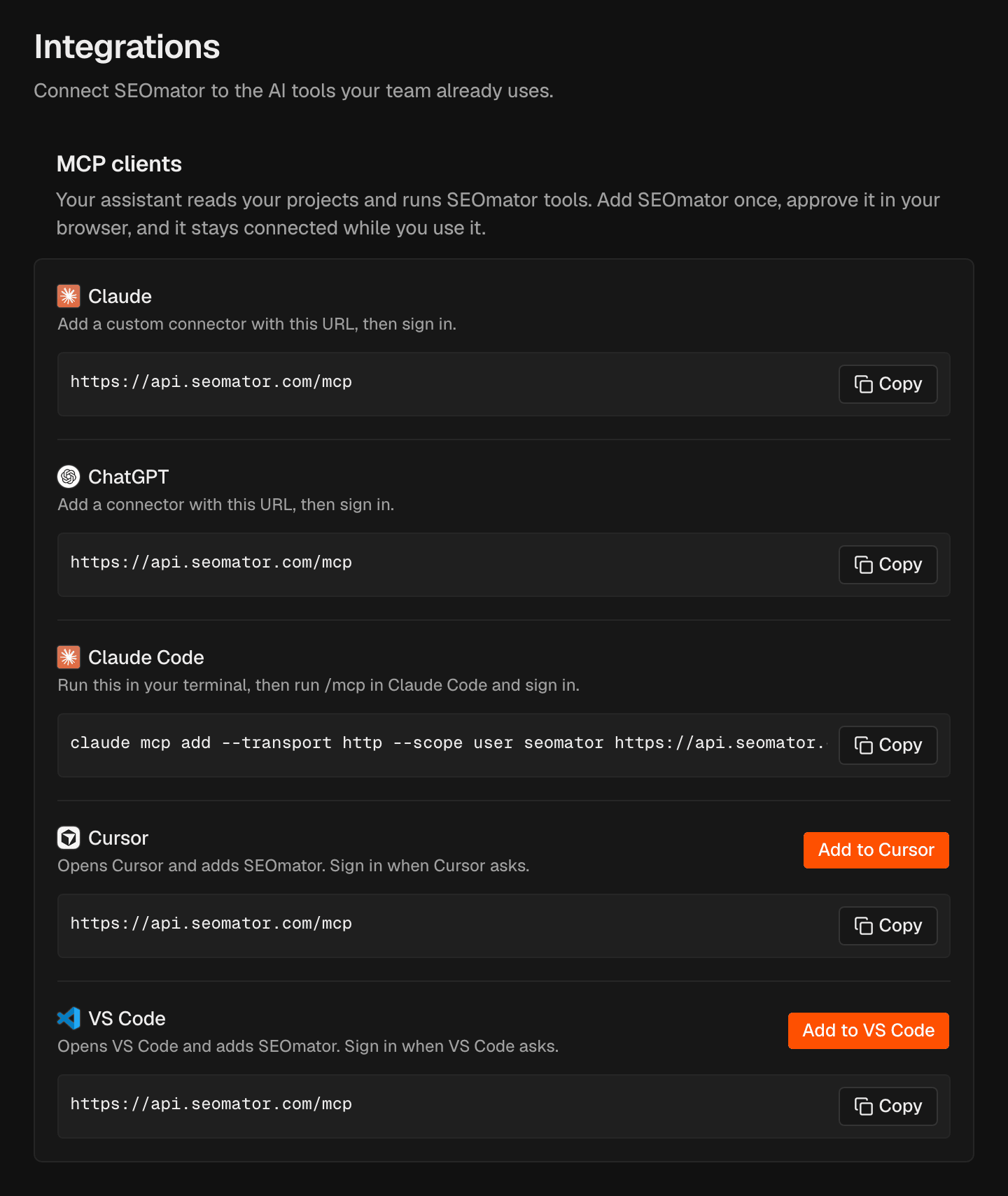
MCP clients
MCP clients has one row for each supported tool: Claude, ChatGPT, Claude Code, Cursor and VS Code. Each row shows what to do in that tool:
When you sign in from the tool, you approve it in your browser, and it stays connected while you use it. For the full setup, see MCP and AI tools.
Connected apps
Connected apps lists the apps you approved to use SEOmator with your account. Each shows its organization, when you connected it and when it was last active. A connection stays signed in while it is used and ends after 30 days without use.Search Console
Google Search Console is connected per project, not here. In the sidebar, under Project, click Search Console. See Project settings.Disconnect an app
End an app’s access now.1
Find the app
In Connected apps, find the app.
2
Disconnect it
Click Disconnect, then click Disconnect in the confirmation.
Related
MCP and AI tools
Add SEOmator to your AI tool, step by step.
API keys
Connect scripts and tools that can’t sign in.