
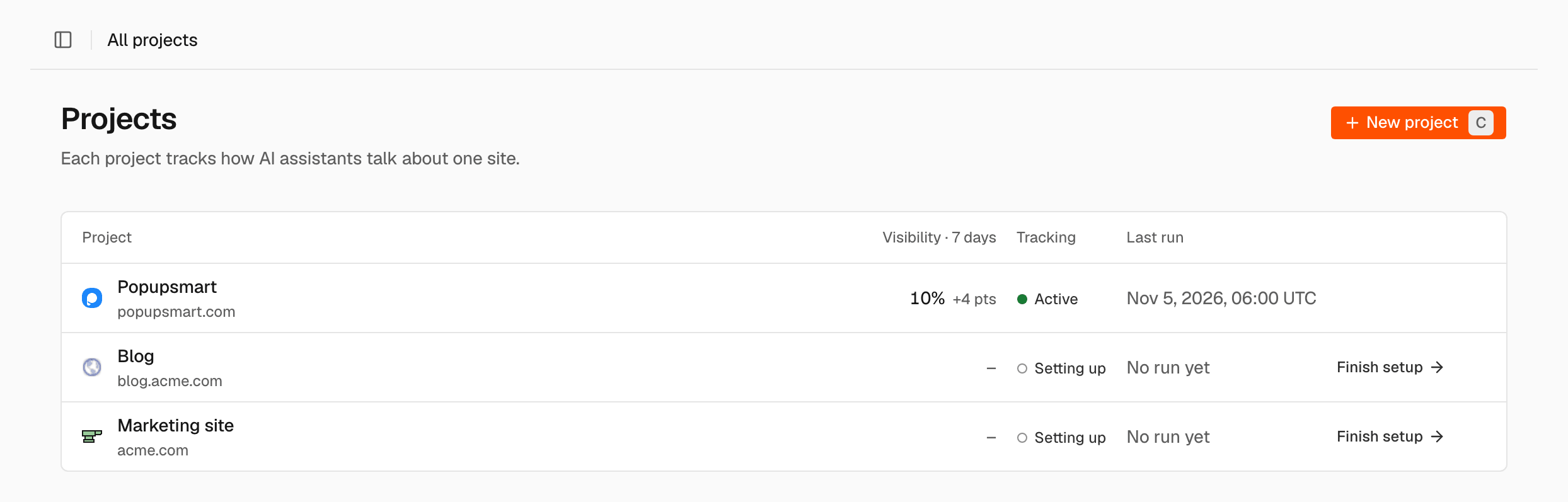
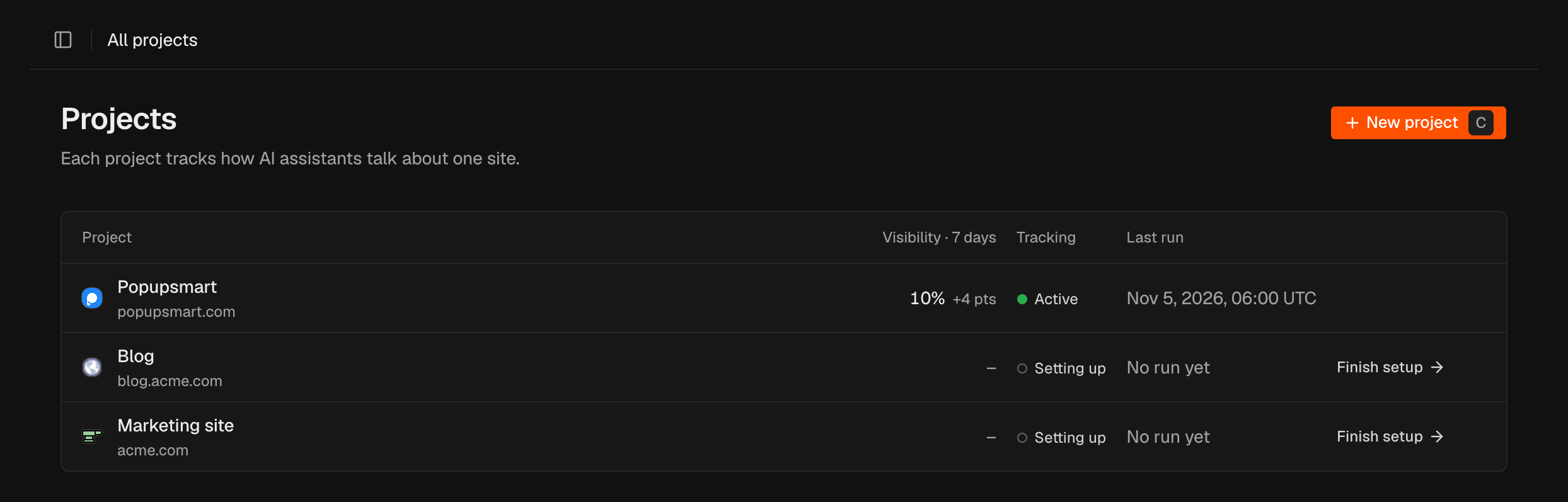
The projects list
Click a project to open its reports. A project that is still Setting up shows Finish setup and opens its setup instead.
The row menu
Hover a row and click ⋯ for more actions:- Pin to sidebar or Unpin from sidebar
- Copy link: copies a link to the project’s Insights report
- Project settings
- Delete project: removes its jobs and results for everyone in the organization. See Project settings.
Create a project
Add a site you want to track.1
Open the dialog
On the Projects page, click New project, or press C.
2
Enter the site
In the New project dialog, enter the Name and Domain. Write the
domain without
https://, for example example.com.3
Create it
Click Create project.
Set up the project
Setup has six steps. The step list shows where you are, and your progress saves as you go: you can click Exit and come back later through Finish setup. Click Continue to move to the next step, or Back to return.1
Check the profile
In Profile, SEOmator reads your site and writes a profile: Category, Business type, a short description of what you sell, Products and Buyer personas. Check the Country and Language too. A project has one market; to track another market, add it as its own project. Edit anything that is wrong, then click Looks good.If SEOmator can’t read your site, describe in one line what you sell and it continues from there.
2
Optional: connect Search Console
In Search Console, click Connect Google Search Console and choose the property for this site. Access is read-only, and SEOmator uses it to show which searches already bring buyers to your site, with your Google position next to each keyword. You can disconnect it anytime from the project settings. To go on without it, click Skip for now.
3
Review competitors
In Competitors, review the brands AI names next to you. 5 to 8 competitors works best. Click Add a competitor to add one, or use a row’s menu to edit or delete it. Your own brand must be in this list before you can start tracking. While you edit, SEOmator looks for more competitors in search data and AI answers.
4
Review keywords
In Keywords, review the searches your buyers type. The Source column shows where each one came from, for example Search Console, You rank, Rivals rank, Related or Added by you. Remove the ones you don’t sell for, or click Add a keyword.
5
Review prompts
In Prompts, review the prompts SEOmator will ask AI every day, grouped by topic. Each prompt has an intent (Research, Compare or Buy) and is Branded or Non-branded. Add, edit or remove prompts and topics, or click Regenerate to write a new set from your profile.
6
Start tracking
In Start tracking, check the summary: your prompts, the assistants, your brand, competitors and keywords. Then click Start daily tracking. Nothing runs until you do.
Each step can run at most 5 times a day. If a step says it already ran 5 times
today, go on with what it found or try again tomorrow.
Related
Prompts
Change the questions each daily run asks.
Competitors
Choose the brands each answer is checked for.
Project settings
Pause tracking, change the market or delete a project.
Insights
Read the first results.