
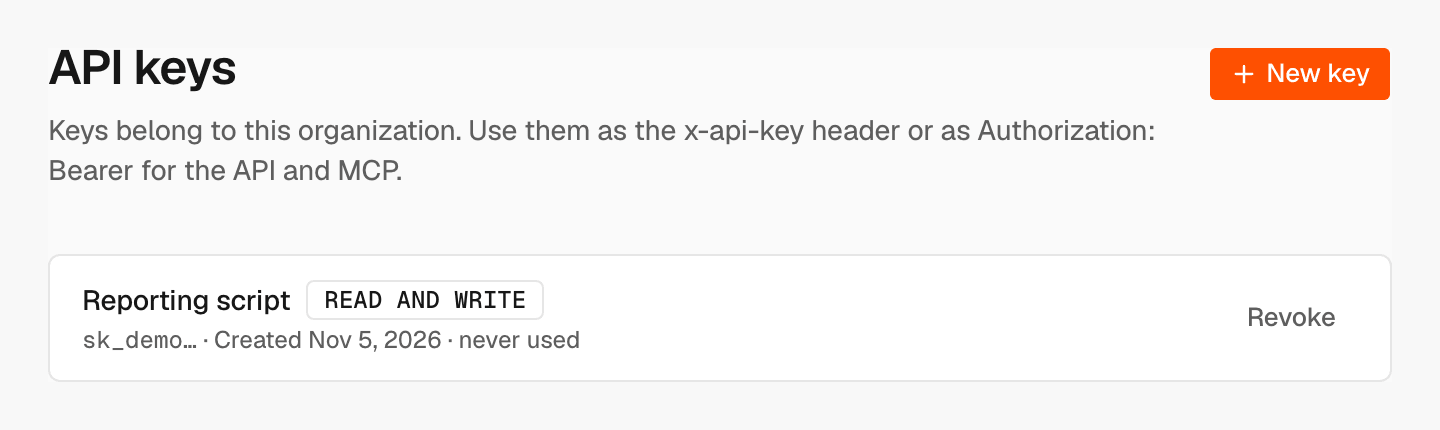
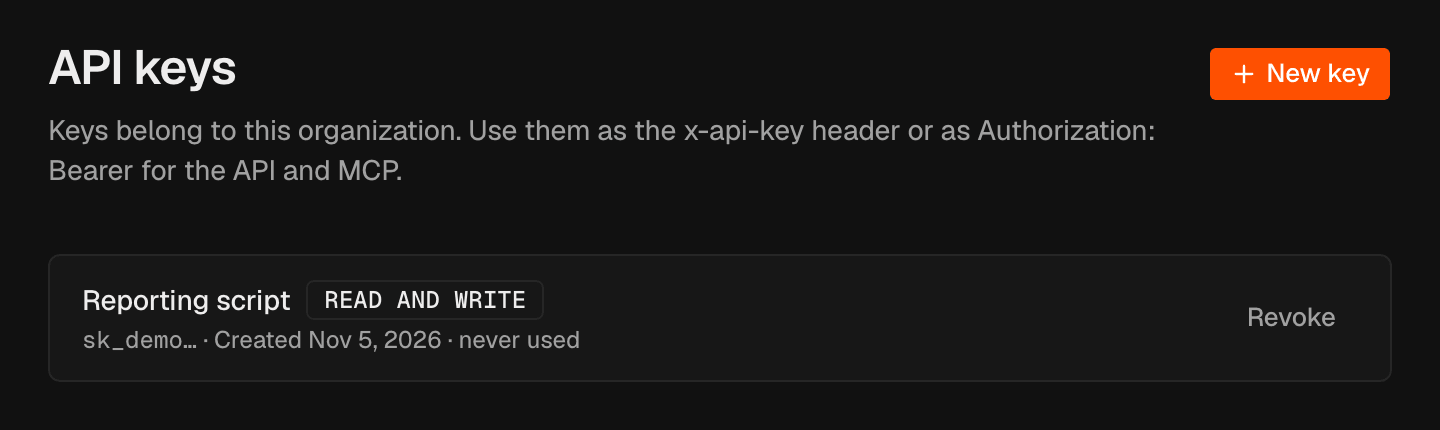
Key list
Each key shows its name, its access, the first characters of the key, when it was created and when it was last used.Access levels
No key can manage members, API keys or billing, whatever its access. Choose Read only unless the app needs to make changes.
Create a key
1
Open the form
Click New key.
2
Name it
Enter a Name you will recognize later, such as the app that uses it.
3
Choose its access
Under Access, choose Read only or Read and write.
4
Create it
Click Create key.
5
Copy it
Click Copy, store the key, then click Done.
The key is shown only once. Copy it before you click Done. If you lose it,
revoke it and create a new one.
Send the key
Send the key with every request, in one of these two headers:Revoke a key
1
Start
In the key’s row, click Revoke.
2
Confirm
Click Revoke in the confirmation.
Related
MCP and AI tools
Connect Claude, ChatGPT and other AI tools.
Members
Roles and who can manage keys.