
What each prompt has
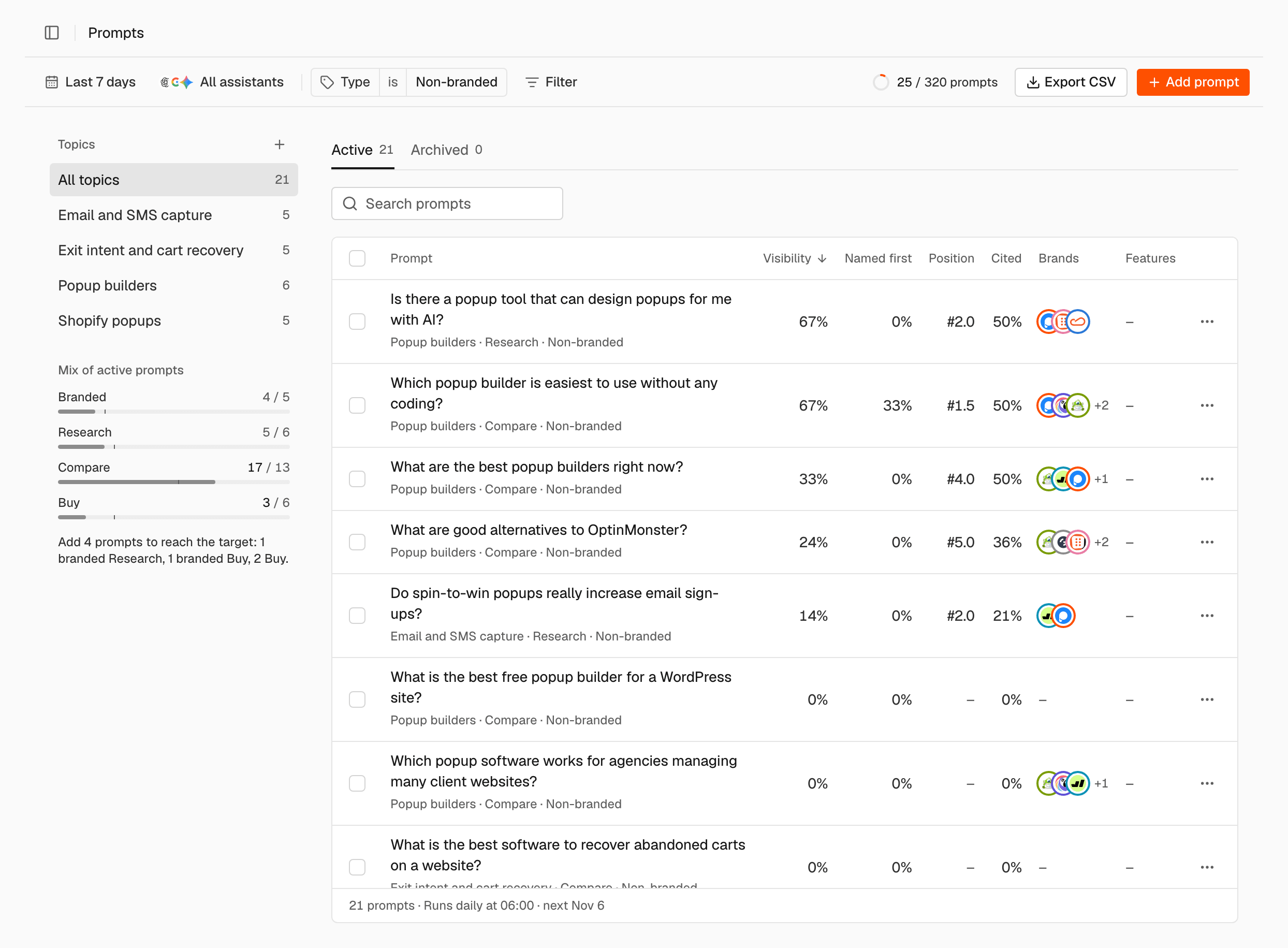
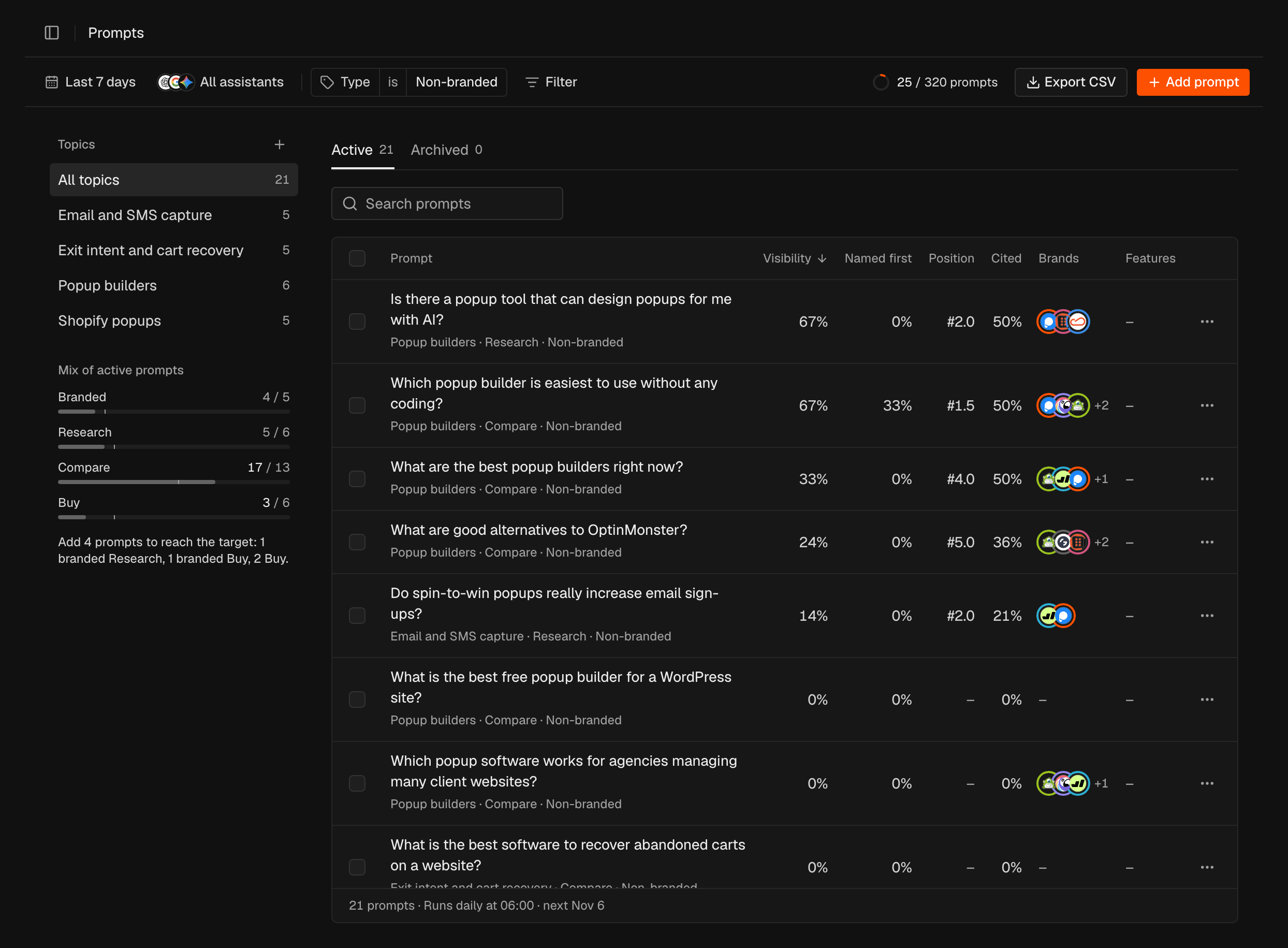
Under each prompt you see its topic, its intent and its type, for example “Popup builders · Compare · Non-branded”.- Topic: a group of related prompts, such as “Shopify popups”. Choose a topic in the Topics list to show only its prompts.
- Intent: what the buyer wants.
- Research: they are learning about a problem.
- Compare: they are choosing between products.
- Buy: they are ready to buy.
- Type: Branded or Non-branded. A prompt is branded when its text names your brand. SEOmator decides this from the text; you don’t set it. Naming a competitor doesn’t make a prompt branded.
The prompt table
For each prompt, the table shows how the answers in the selected period treat you:- Visibility, Named first, Position and Cited: your metrics for the prompt. See Metrics for what each one means.
- Brands: the tracked brands named in the answers.
- Features: shopping cards, ads or a map in the answers. Which assistants report each: How SEOmator works.
Prompts in your plan
The ring next to Export CSV shows how many prompts you use and how many your plan includes, for example “25 / 320 prompts”. You can add prompts beyond your plan. What each plan includes and how extra prompts are paid: Plans and credits.Mix of active prompts
Mix of active prompts, in the same column as the Topics list, compares your active prompts with the target mix: 20% branded, and intents split 25 / 50 / 25 across Research, Compare and Buy. Each row shows your count and the target, for example “Compare 17 / 13”. The card then says what to change, for example “Add 4 prompts to reach the target: 1 branded Research, 1 branded Buy, 2 Buy.” When your plan has no room left, it suggests which prompts to archive and which to add instead. When the mix is right, it shows “On target”.The prompt page
Click a prompt to open its page, with its trend, brands, sources and answers. See Prompt details.Add a prompt
Add a question you want the assistants to be asked every day.1
Open the dialog
Click Add prompt at the end of the filter bar.
2
Choose a topic and an intent
In the Add a prompt dialog, choose a Topic and an Intent. The
intent is required.
3
Write the prompt
In Prompt, ask it the way a buyer would, without your brand name unless
you want a branded prompt. Or click Suggest to get ideas for the chosen
topic and intent, and choose one. Select About my brand first to get
branded suggestions.
4
Save
Click Save.
Add a topic
Click + (New topic) next to Topics, enter a Topic name and click Create topic. The topic appears in the Topics list, ready to choose when you add a prompt.Edit or archive a prompt
Change a prompt’s wording, topic or intent, or stop asking it.1
Open the row menu
In the prompt table, click ⋯ at the end of the prompt’s row.
2
Edit or archive
Choose Edit to change the topic, intent or text, then click Save. Or
choose Archive to stop asking the prompt.
Track an archived prompt again
In the Archived tab, click ⋯ in the prompt’s row and choose Track daily. To reactivate several at once, select their checkboxes and click Track daily in the table footer. The prompts move back to the Active tab.Delete an archived prompt
Owners and admins What each role can do: Members. Only archived prompts can be deleted. Archive the prompt first.1
Open the row menu
In the Archived tab, click ⋯ in the prompt’s row.
2
Delete
Choose Delete, then confirm with Delete.
Export your prompts
Click Export CSV to download every active and archived prompt, with its topic, type, intent, status and metrics.Related
Prompt details
Read one prompt’s trend, brands, sources and answers.
Competitors
Choose the brands each answer is checked for.
Answers
Read every answer the assistants gave.
Plans and credits
See how many prompts your plan includes.