
Create an account
1
Open the sign-up page
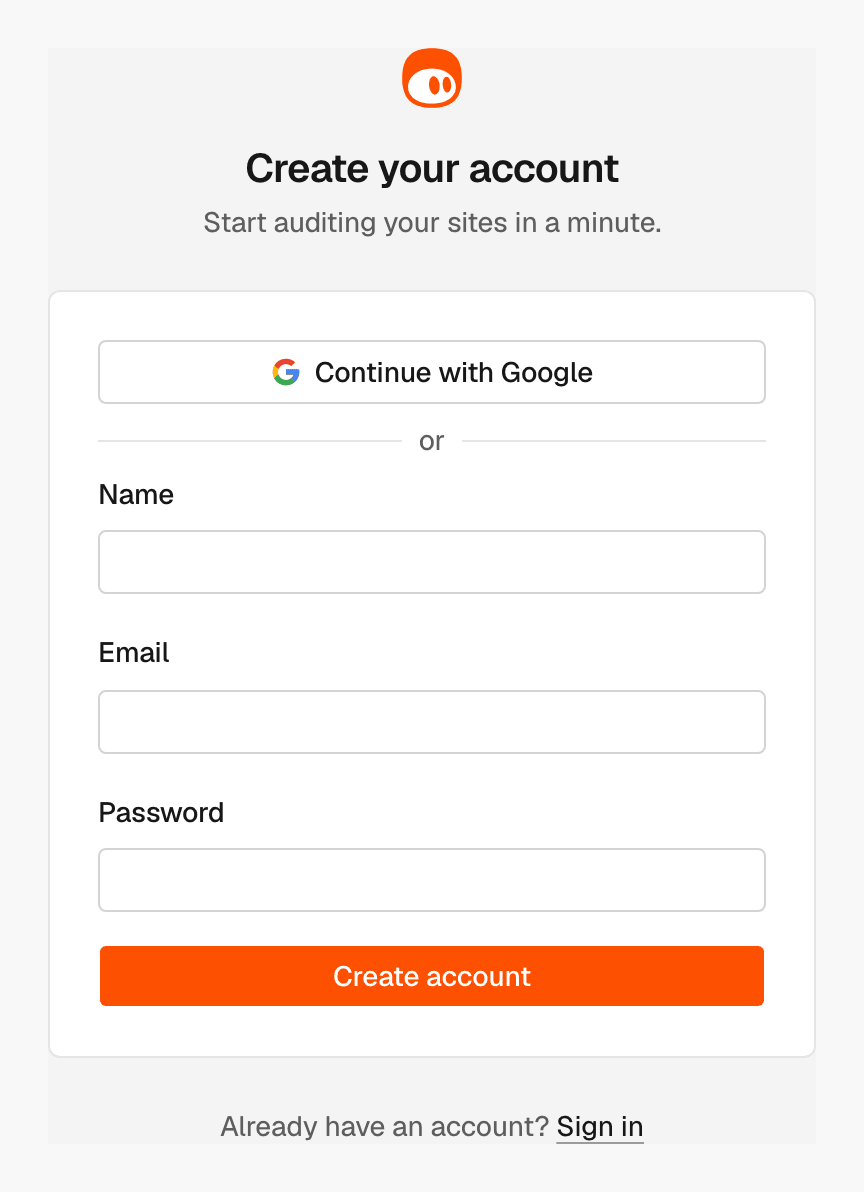
Go to app.seomator.com/sign-up. From the
sign-in page, click Create account next to “No account yet?”.
2
Enter your details
Enter your Name, Email and Password. The password needs at least
8 characters. Then click Create account.
3
Verify your email
SEOmator sends a link to your address. Open it to verify your email and sign
in.
Create your organization
After your first sign-in, SEOmator asks you to create an organization. Projects, API keys and billing belong to an organization, and you can invite your team to it later.1
Name the organization
On Create your organization, enter an Organization name, for example
your company name.
2
Create it
Click Create organization.
Sign in
1
Open the sign-in page
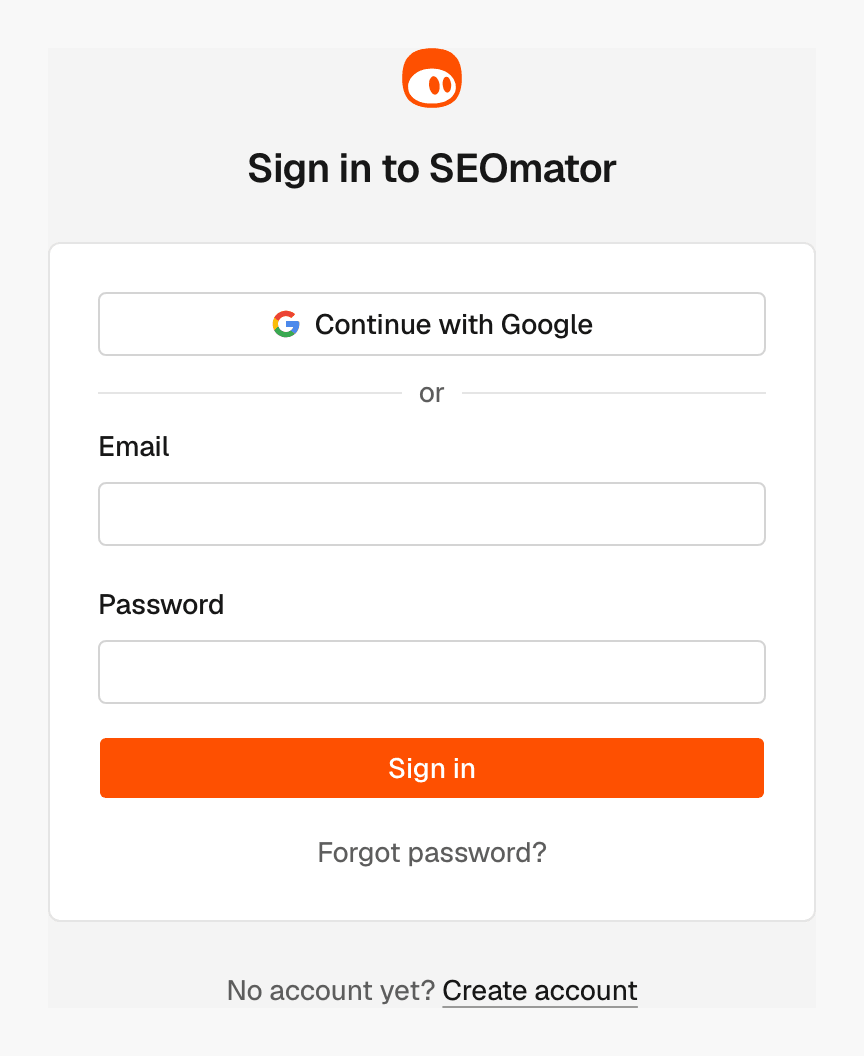
Go to app.seomator.com/sign-in.
2
Enter your email and password
Enter your Email and Password and click Sign in, or click
Continue with Google.
Reset a forgotten password
1
Request a link
On the sign-in page, click Forgot password?. Enter your Email and
click Send reset link.
2
Open the email
If an account exists for that address, a reset link is on its way. Open it.
3
Choose a new password
Enter a New password and click Save password. You return to the
sign-in page.
If you signed up with Google, you have no password yet. You can set one on
Security.
Enter a two-factor code
When two-factor authentication is on for your account, SEOmator asks for a code after your password.1
Enter the code
Open your authenticator app and enter the code in Code from your
authenticator app.
2
Optional: trust this device
Select Trust this device for 30 days to skip the code on this device.
3
Verify
Click Verify.
Related
Plans and credits
Start a trial or continue with Free.
Quickstart
Go from sign-up to your first numbers.
Security
Change your password and turn on two-factor authentication.
Members
Invite your team to your organization.